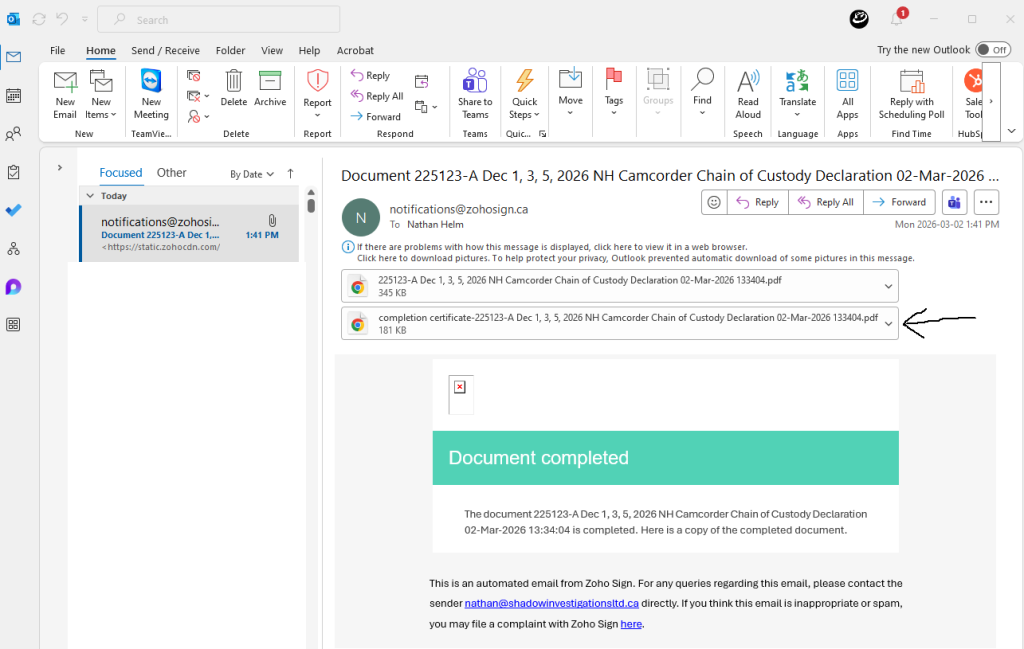
Detailed step-by-step instructions for submitting video evidence and hash values:
1. Prepare the Video Folder
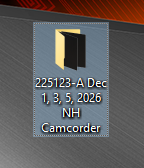
- Download and Organize: Download the video clips to your computer and place them into a single folder [01:46].
- Folder Naming Convention: Label the folder using the following format:
- Start with the 6-digit file number [01:52].
- Followed by the specific date or dates of the footage (e.g., Dec 1, 3, 5, 2025). Avoid ranges; list each day individually [02:14].
- Include your investigator initials [02:51].
- Specify the video type (e.g., Camcorder or Covert) [02:51].
- Example: 225123-A Dec 1, 3, 5, 2025 NH Camcorder
2. Generate Hash Values
- Open Hash My Files: Launch the “Hash My Files” program. If you do not have a copy, you can download it from the Submit Video Evidence page in the Investigator Portal App [03:13].
- Import Files: Drag and drop the entire video folder into the program window to generate unique hash values (fingerprints) for each file [03:21].
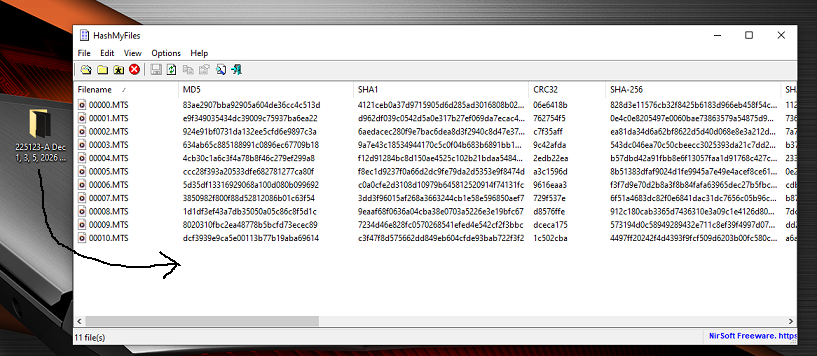
- Check Settings: Go to Options and ensure that the setting to display/include headers is checked. This is required for the system to read the CSV file correctly [03:40].
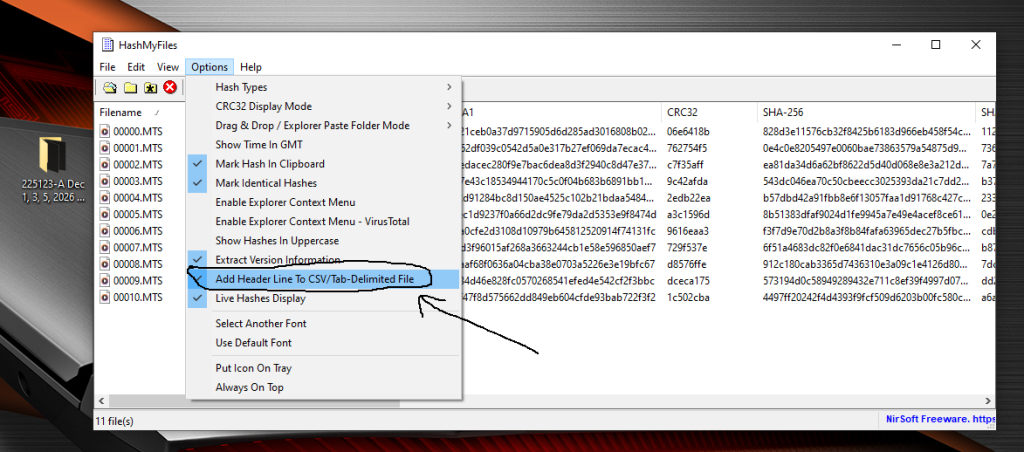
3. Save the Hash Data
- Select All: Highlight all generated rows by clicking in the area and pressing Ctrl + A [04:00].
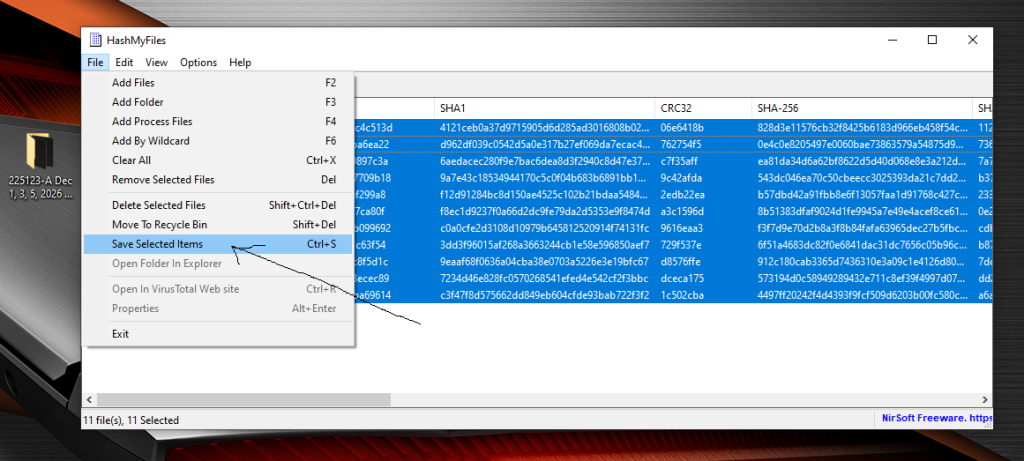
- Save as CSV: Go to File > Save Selected Items [04:11].
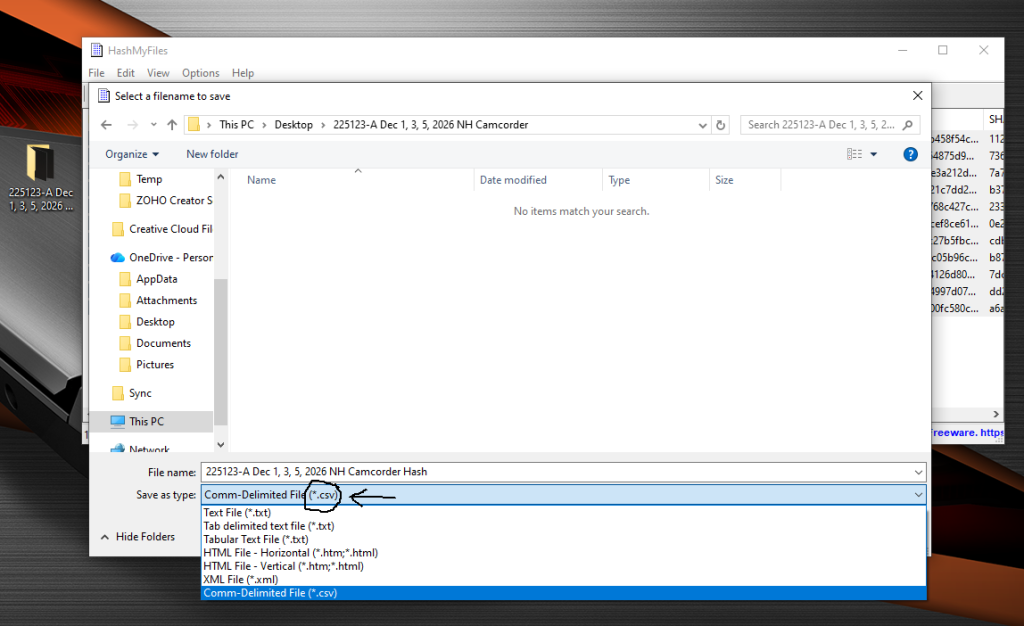
- Naming the File: Name the CSV file exactly the same as your video folder [04:21].
- Format: Ensure the file format is set to CSV [04:44].
- Storage: Save this CSV file directly inside the video folder you prepared in Step 1 [04:52].
4. Upload to the Server
- Sync Account: Open your Sync.com account or designated filing system [05:25].
- Upload Folder: Drag and drop the complete folder of video clips (containing the videos and the CSV file) onto the server folder to begin the upload [05:33].
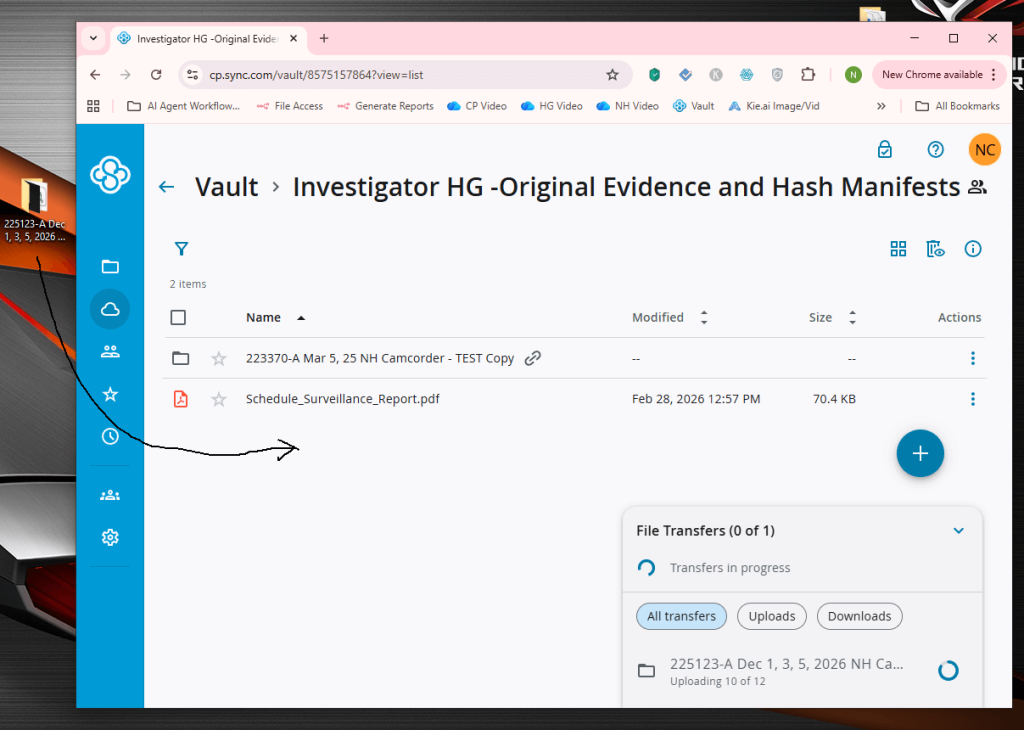
- Confirm Completion: Wait for the progress bar to finish to ensure all files are fully uploaded. All transfers Complete will be displayed. [05:39].
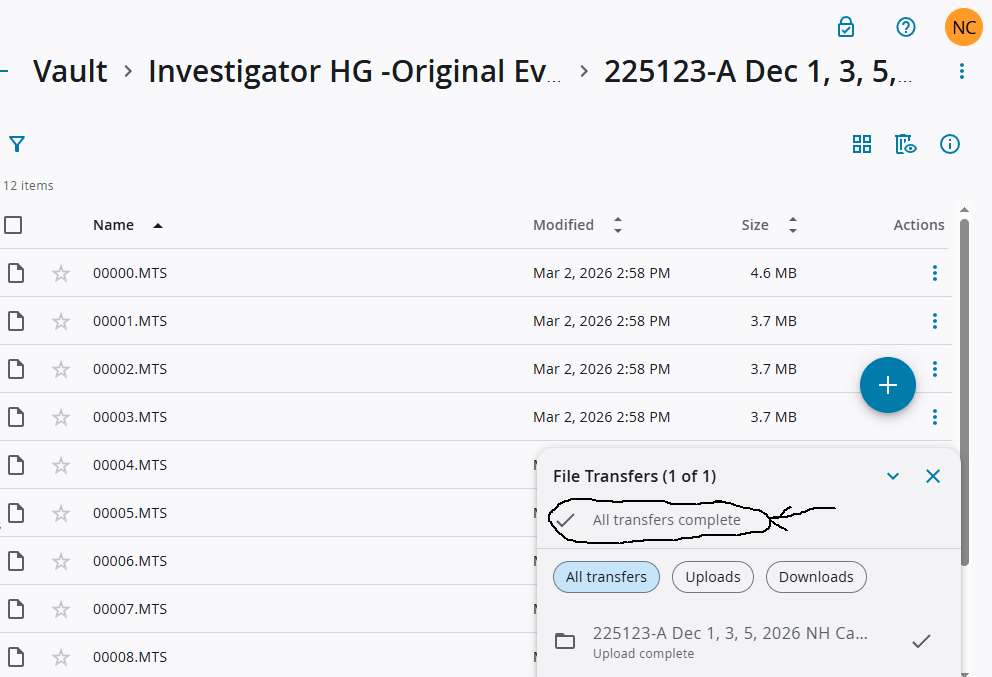
- Verify All Files Uploaded Successfully: Verify that the same number of files/items had been uploaded by:
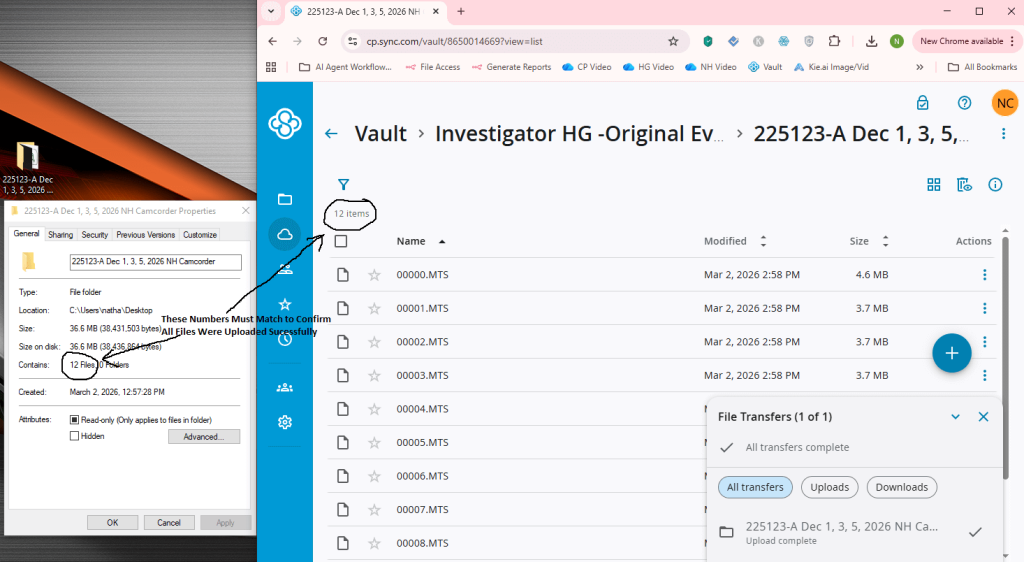
- Left-clicking into the uploaded folder in Sync to see the number of items listed and then
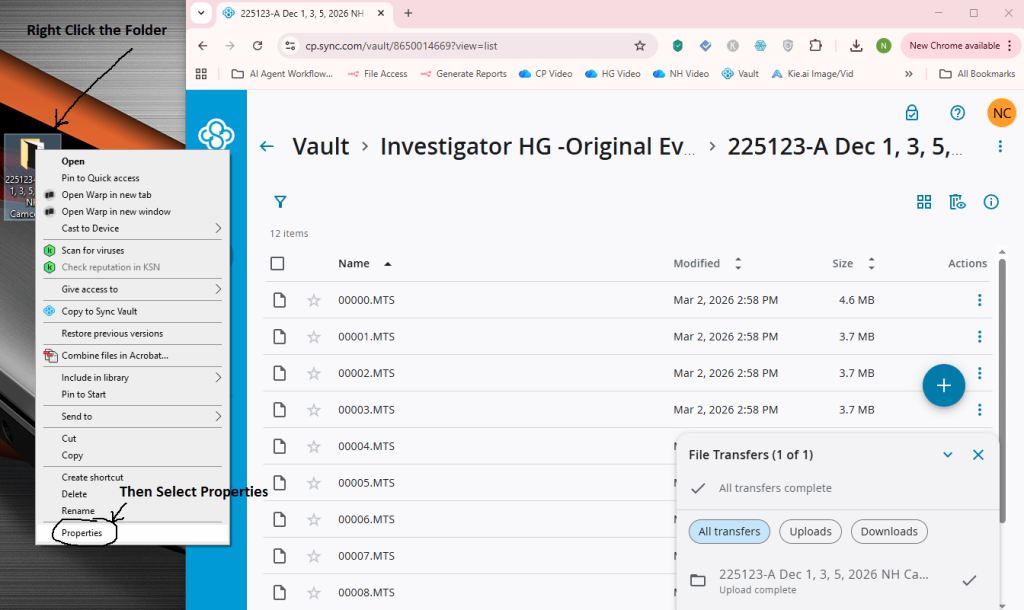
- Right-clicking the folder that was uploaded and selecting properties
- Check that the number of files listed in the properties of the video folder matches the number of items listed in the folder you have uploaded to Sync. If not, please upload the folder again and verify before moving on to the next step.
5. Submit CSV File via the Investigator Portal App
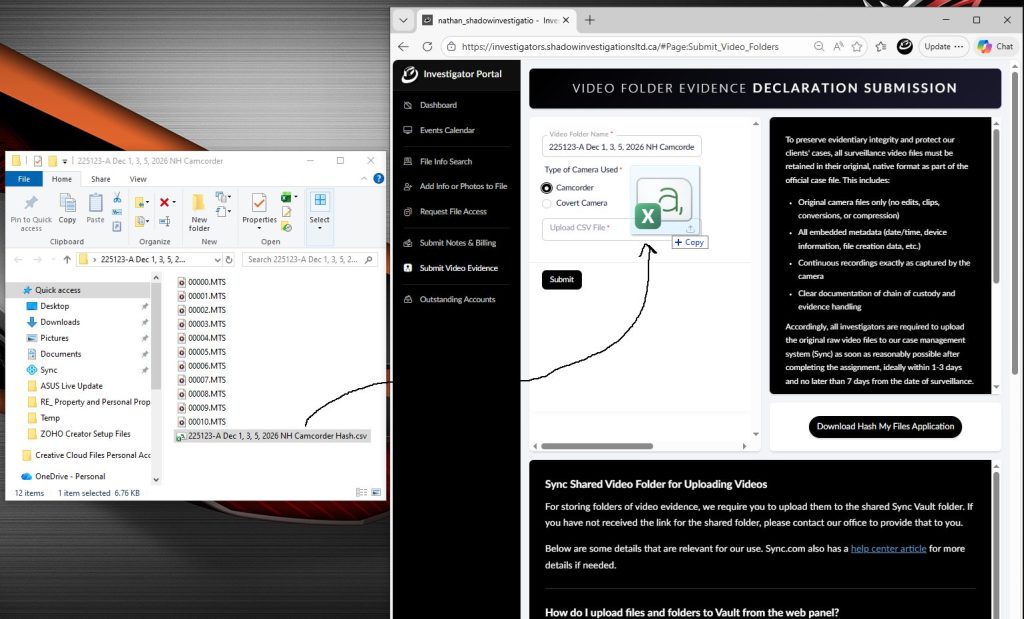
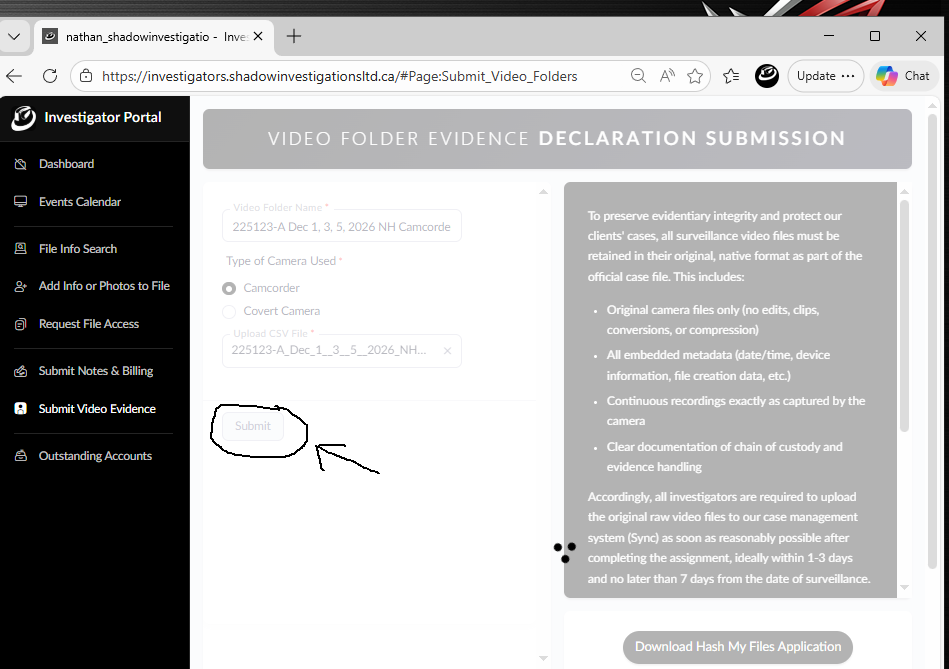
- Access Investigator Portal App: Log in to the Investigator Portal App at https://investigators.shadowinvestigationsltd.ca and click on the Submit Video Evidence tab [05:09].
- Enter Folder Name: Copy the exact name of your video folder and paste it into the portal [06:10].
- Select Video Type: Choose either Camcorder or Covert video [06:16].
- Upload CSV: Drag and drop the CSV file only into the designated upload area on the portal [06:22].
- Submit: Click the Submit button to start the automated workflow [06:30].
6. Sign the Digital Declaration
- Check Your Email: Wait for an email notification from Zoho Sign [06:49].
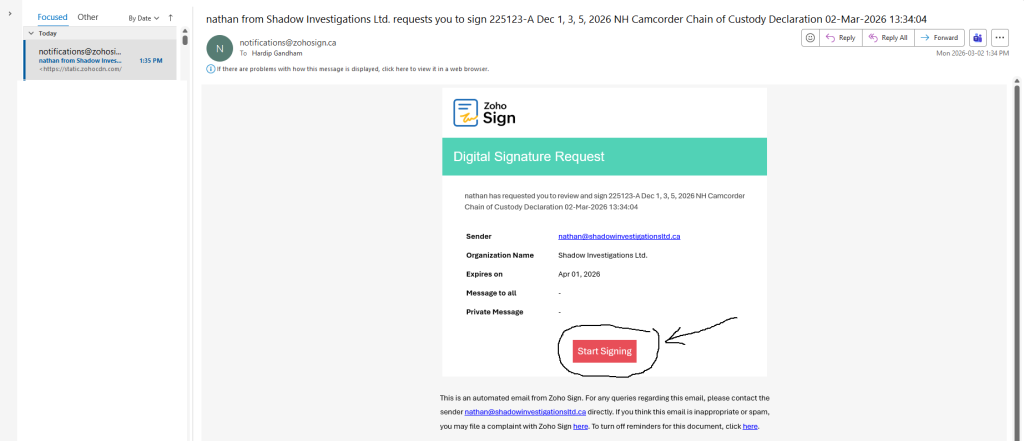
- Open Document: Click Sign Document in the email and proceed to the document [07:08].
- Verify Information: Review the automated document. Ensure the file number, dates, and hash values have been correctly extracted from your folder and CSV [07:22].
- Note: If the document is blank or missing data, you likely forgot to include headers in Step 2 [08:24].
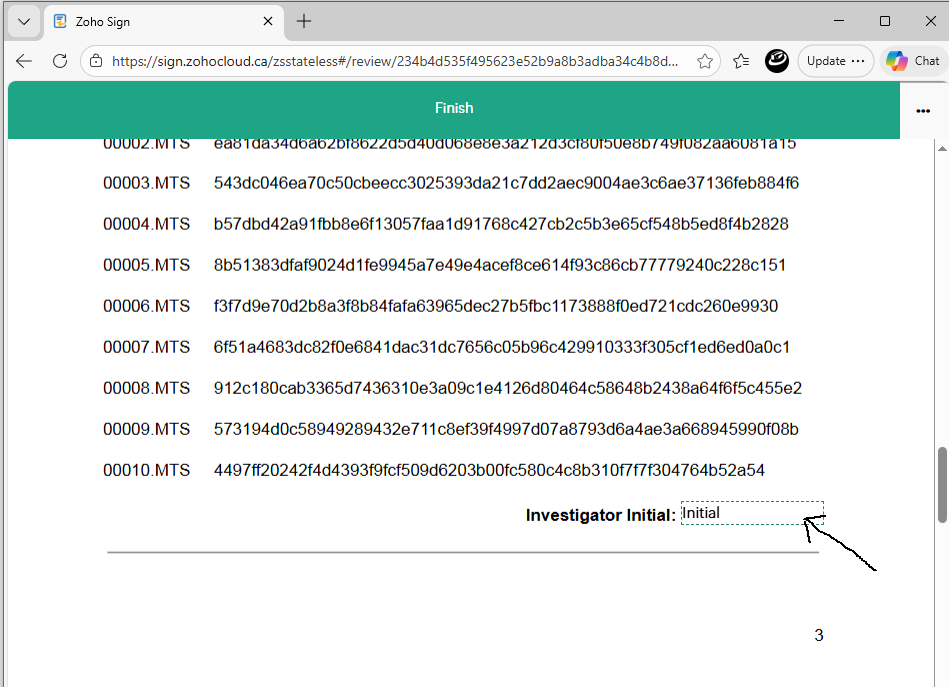
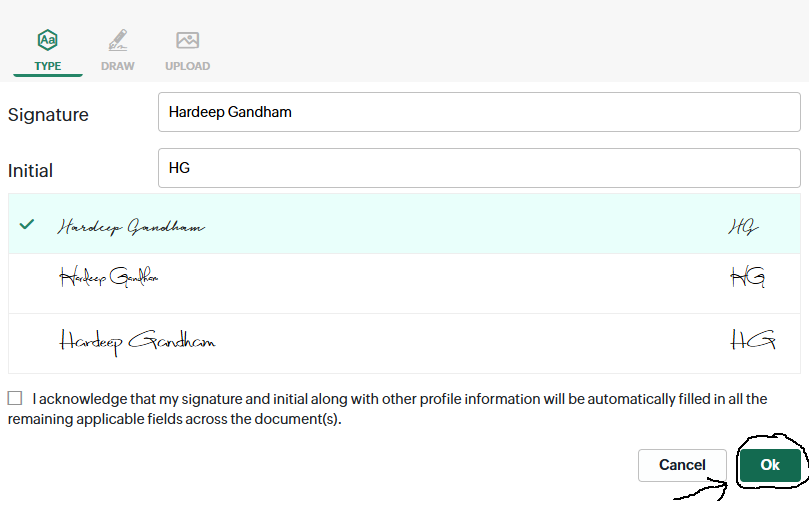
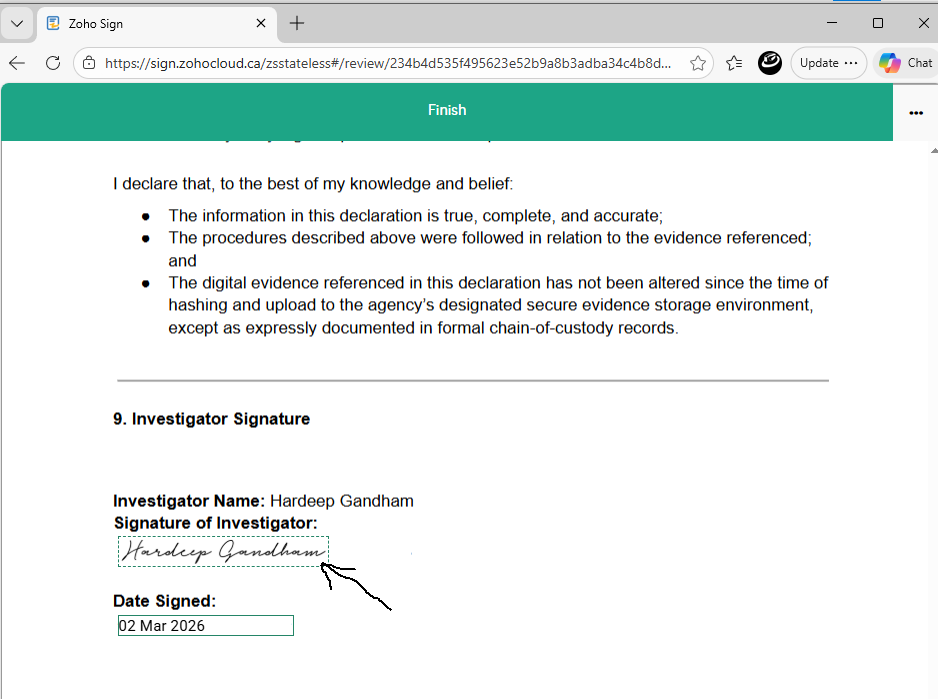
- Sign and Finish:
- Receive Completed Chain of Custody Declaration Document:
- Once our managing director signs off on the document, you will receive a final copy by email for your records.